
Laptop Screen Flickering: 7 Shocking Causes & Pro Fixes
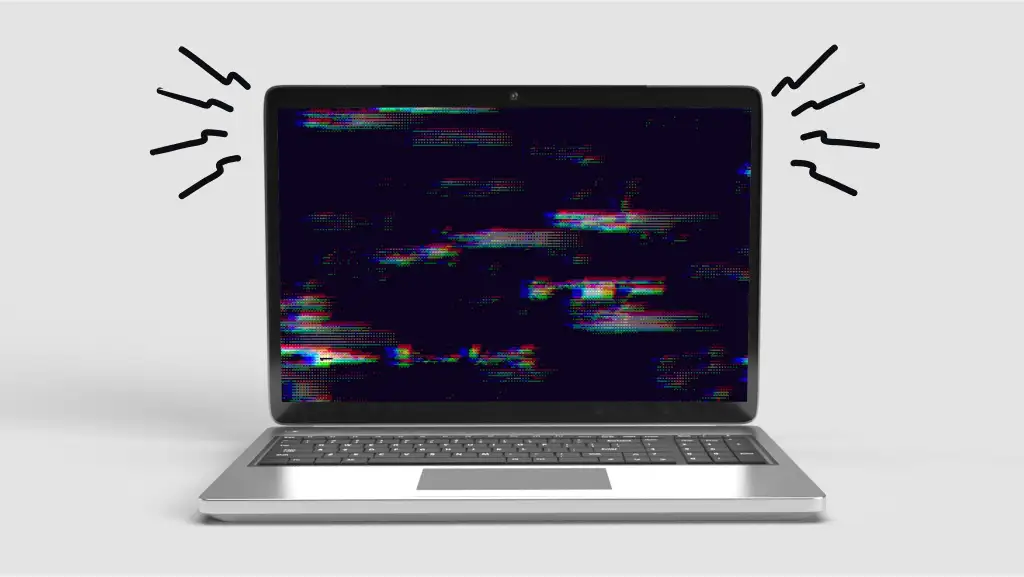
There are few tech problems more frustrating than a laptop screen flickering. One moment you’re working on an important report, and the next, your display starts strobing like a disco ball or simply goes black. This jarring experience doesn’t just disrupt your workflow; it sparks immediate panic. Is my laptop dying? Is this going to be an expensive repair?
At Chipfixers Infotech, we see this issue daily. The good news is that not every flickering screen signals a catastrophe. The cause can range from a simple software glitch to a more complex hardware failure.
This comprehensive guide will walk you through the entire diagnostic process. We’ll help you identify the root cause of your display issues, explore what you can fix at home, and clarify when it’s time to call in an expert laptop technician for advanced repairs, including motherboard-level solutions.
Table of Contents
Why Is My Laptop Screen Flickering or Going Black?
A flickering or black screen is a symptom, not the disease itself. It’s your laptop’s way of telling you that something is wrong in the complex chain of command that delivers visuals to your display. The culprit could be software-based, a loose connection, or a failing hardware component.
Here are the most common causes we encounter:
- Outdated or Corrupt Graphics Drivers: This is the most common and easiest-to-fix cause. Drivers are the software that lets your operating system (like Windows) communicate with your graphics card.
- Incorrect Display Settings: Sometimes, an incompatible refresh rate or resolution setting can cause a laptop screen glitch.
- Loose or Damaged Display Connector: The cable connecting your motherboard to your screen can become loose or damaged over time, especially from opening and closing the lid.
- Failing Screen (LCD/LED Panel): The display panel itself has a lifespan and can fail, leading to flickering, dead pixels, or a completely black screen.
- Faulty Backlight or Inverter: If you can see a very faint image on a black screen, the backlight that illuminates your display has likely failed.
- Application Incompatibility: In rare cases, a specific application can conflict with your graphics drivers and cause flickering only when it’s running.
- Serious Hardware Failure (GPU/Motherboard): This is the most severe cause. A failing graphics chip (GPU) on the motherboard can cause severe visual artifacts, flickering, and ultimately, a black screen. This requires motherboard-level repair.
Step-by-Step Diagnosis: What You Can Do at Home
Before you panic about repair costs, let’s perform a display issues diagnosis. These simple steps can help you narrow down the problem and potentially solve it yourself.
Step 1: The Software Check – Update Graphics Driver
Since driver issues are so common, this should always be your first step. An outdated driver can easily cause a laptop screen flickering issue.
- How to Update:
- Right-click the Start button and select “Device Manager.”
- Expand the “Display adapters” section.
- Right-click on your graphics card (e.g., NVIDIA GeForce, AMD Radeon, or Intel HD Graphics) and select “Update driver.”
- Choose “Search automatically for drivers.” Windows will attempt to find and install the latest version.
For a more reliable update, visit your laptop manufacturer’s website or the graphics card manufacturer’s site directly (like NVIDIA or AMD) to download the latest driver for your specific model.
Step 2: The External Monitor Test
This is the single most important diagnostic step you can take. It tells you whether the problem lies with your laptop’s screen or its internal graphics processing.
- How to Perform the Test:
- Find an external monitor or a TV.
- Connect your laptop to it using an HDMI, DisplayPort, or USB-C cable.
- Press the Windows key + P and select “Duplicate” or “Second screen only.”
- Interpreting the Results:
- If the external monitor works perfectly, the problem is almost certainly with your laptop’s physical screen, its connecting cable, or the backlight. Your graphics card is likely fine.
- If the flickering also happens on the external monitor, this points to a deeper problem—a failing graphics chip (GPU) or a motherboard issue.
Step 3: Check Your Display Settings
Sometimes, Windows display settings can be the culprit. An incorrect refresh rate (the number of times per second the screen refreshes) can cause flickering.
- How to Check:
- Go to Settings > System > Display.
- Scroll down and click on “Advanced display settings.”
- Check the refresh rate. If you have multiple options, try switching to a different one (e.g., from 60Hz to 59.94Hz or vice-versa) to see if the flickering stops.
When DIY Fails: Signs You Need Professional Laptop Repair
If the steps above didn’t solve your laptop screen going black or flickering, it’s time to consider professional help. Continuing to use a laptop with a developing hardware issue can cause further damage.
Here are clear signs you need an expert:
- The Problem Persists After All Software Fixes: If you’ve updated drivers and checked settings to no avail, it’s a laptop hardware failure.
- Flickering Worsens When You Move the Lid: This is a classic symptom of a loose display connector or a damaged internal cable. It requires carefully disassembling the laptop to reseat or replace it.
- You See Vertical/Horizontal Lines or Cracks: This indicates physical damage to the LCD panel itself. The only solution is a screen replacement.
- The Screen is Black, but You See a Faint Image: This is a tell-tale sign of a faulty backlight or inverter board. These components are integral to the display assembly and require expert replacement.
The Deep Dive: When It’s a Motherboard Level Repair Issue
The scariest diagnosis is a graphics chip failure. On most laptops, the Graphics Processing Unit (GPU) is permanently soldered onto the motherboard. When it fails, you can’t just “swap it out.” This is where the true expertise of a company like Chipfixers Infotech becomes essential.
Repairing a faulty GPU involves a highly technical process called micro-soldering. It requires expensive equipment to safely remove the old chip and solder a new one onto the motherboard without damaging the surrounding components.
This is not a DIY task. Attempting it without the right skills and tools will permanently destroy your motherboard, turning a repairable laptop into a paperweight. If your external monitor test showed flickering, you almost certainly need this advanced service.
Why Choose Chipfixers Infotech for Your Laptop Screen Flickering Problem?
When faced with a daunting laptop black screen repair, you need a partner you can trust. At Chipfixers Infotech, we don’t just replace parts; we solve problems.
- Expert Diagnosis: We use advanced tools to pinpoint the exact cause, saving you money by not replacing parts unnecessarily. Our comprehensive diagnostic services are second to none.
- Transparent Pricing: We provide clear estimates for all repairs, from a simple driver fix to a full screen replacement cost or motherboard repair.
- Advanced Capabilities: We specialise in motherboard-level repair, a service many other shops can’t offer. We have the micro-soldering equipment and skilled technicians to fix complex graphics chip failures.
- Quality Parts: We use high-quality replacement parts to ensure your repair is durable and reliable.
Don’t let a flickering screen disrupt your life. While you can find driver support on official sites like NVIDIA’s website, hardware issues require a professional touch.
Conclusion: Your Clear Path to a Stable Screen
A laptop screen flickering can be an alarming issue, but it’s always solvable. By following the diagnostic steps outlined above, you can determine if it’s a simple software glitch or a more serious hardware problem.
For simple fixes, you’re now empowered to handle them yourself. But when the problem points to a loose cable, a failed panel, or a critical graphics chip failure, professional intervention is crucial.
Don’t guess—get an expert diagnosis. Contact Chipfixers Infotech today, and let our skilled technicians restore your laptop’s display to perfect, stable condition.